 Accountant
User manual
Accountant
User manual
Backup and restore
Keep a backup of your ledger, protect it with a password, and restore it.
What you'll do: save a backup of your ledger, and restore it on this phone or a new one.
All of these are in Settings › Data and backups.
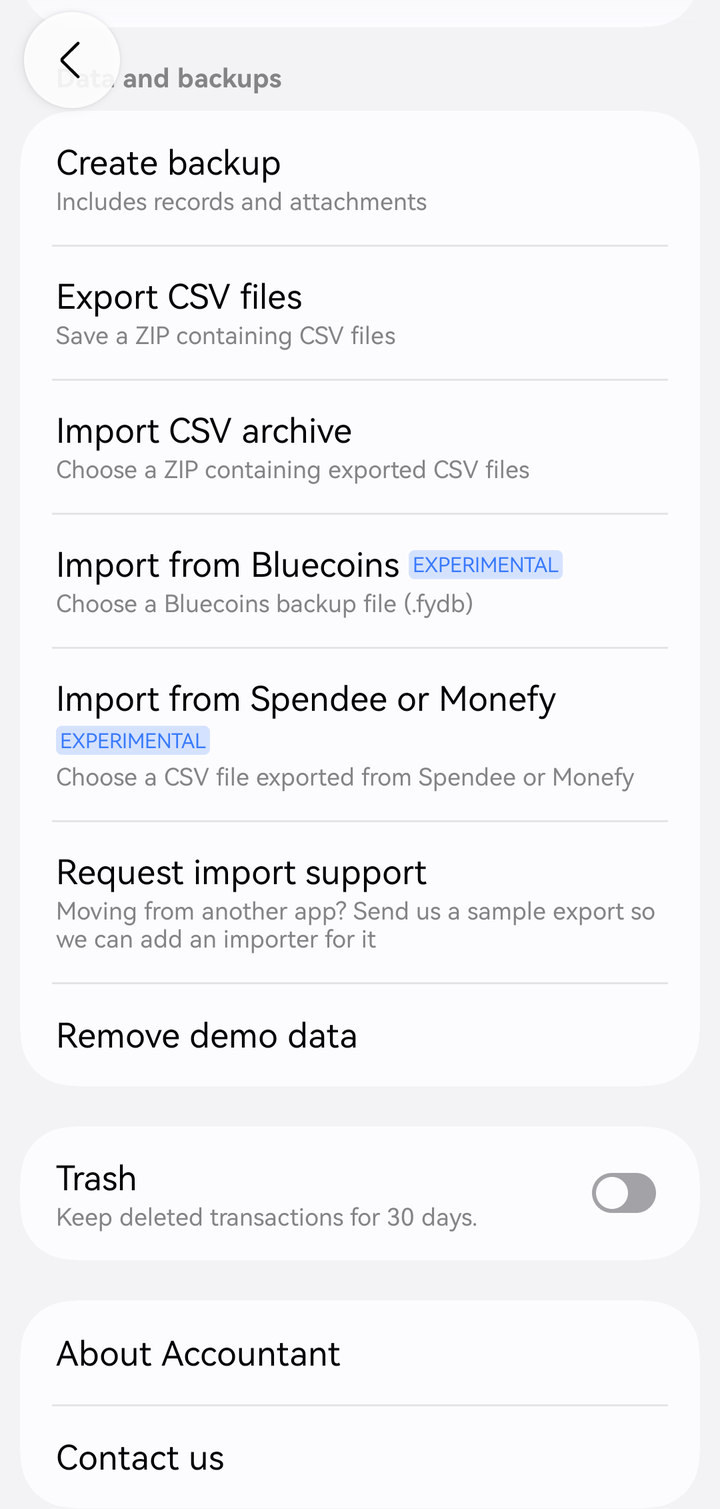
Settings › Data and backups
Create a backup
- Tap Create backup ("Includes records and attachments").
- Optional: enter a Password (optional) and confirm it. The backup is then encrypted.
- Choose where to save the file, for example in your Downloads or a cloud drive folder.
The backup contains your whole ledger and every attachment.
"You'll need this password to restore the backup. It can't be recovered." Keep it somewhere safe. Without it, nobody, including us, can open the backup.
Restore a backup
- Tap Restore from backup ("Replace this device's data with a backup file") and choose the backup file.
- If the backup has a password, enter it.
- Check what the backup contains, then confirm.
"Everything on this device will be replaced. A copy is saved first, so you can undo this under Data and backups. The app will restart." To go back, use Undo last import.
Good to know:
- Sync turns off after a restore. Turn it on again to combine the restored ledger with Google Drive. See Sync across devices.
- A restored ledger leaves any shared ledger it was part of.
- A backup from a newer version of Accountant can't be restored until you update the app.
Print or export a report
Reports and account statements can be printed or saved as PDF or CSV. See Reports.
Sync is a backup too
With Sync across devices on, your ledger and attachments are kept in your own Google Drive. If you lose your phone, install Accountant on a new one, turn on sync with the same account and choose Use the cloud copy.
Android's automatic cloud backup is turned off for Accountant, so uninstalling the app or clearing its storage removes your data from the phone. Keep a backup, or turn on sync.