 Accountant
User manual
Accountant
User manual
Credit cards
Track statements, minimum payments and due dates, and record card payments.
What you'll do: turn on payment tracking for a credit card, so Accountant shows what's due and when, reminds you, and records payments correctly.
Before you start
You need an active Liability account in the Credit card category, with its current balance as the opening balance. See Setting up accounts. Record card purchases with Buy on credit.
Set up payment tracking
- Open the card account: Accounts › Liabilities, then tap the card.
- Tap Set up payments ("Keep track of card payments"). If you see Payment settings (setup required), tap that.
- Turn on Manage card payments.
- Under Billing schedule, set:
- Statement closing day: the day your statement is cut. For shorter months, the last day of the month is used.
- Payment due date: a Fixed monthly day, or a number of Days after closing.
- Minimum payment: your issuer's rule, as a percentage of the statement balance and a minimum amount. The app uses whichever is higher, up to the statement balance.
- Under Payment preferences, optionally set the Default payment account and the Credit limit, which is used to show available credit.
- Under Payment reminders, turn on Remind me and choose When to remind me.
- Go back and tap Save on the account. "Changes are saved when you save the account."
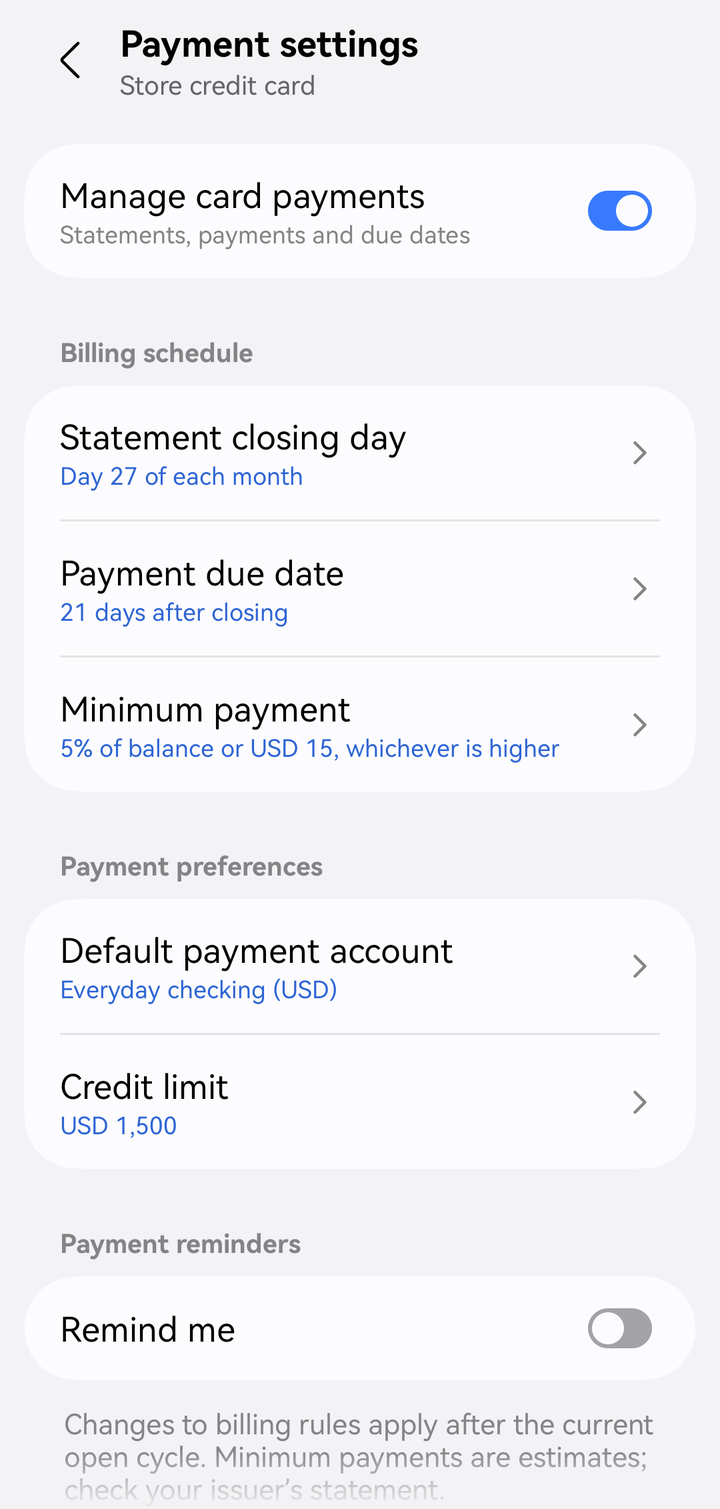
Payment settings for a card
Changes to billing rules apply after the current open cycle. Your first statement appears after the next closing date ("Waiting for your first statement").
See what's due
Open the card account and tap View statements and payments. Payment management shows:
- the latest statement's closing date, Statement balance remaining and due date
- the minimum payment status, such as Minimum payment due, Minimum payment overdue, Minimum paid; statement balance remains or Paid in full
- Statement details: original balance, payments and refunds since closing
- Current card balance and Available credit
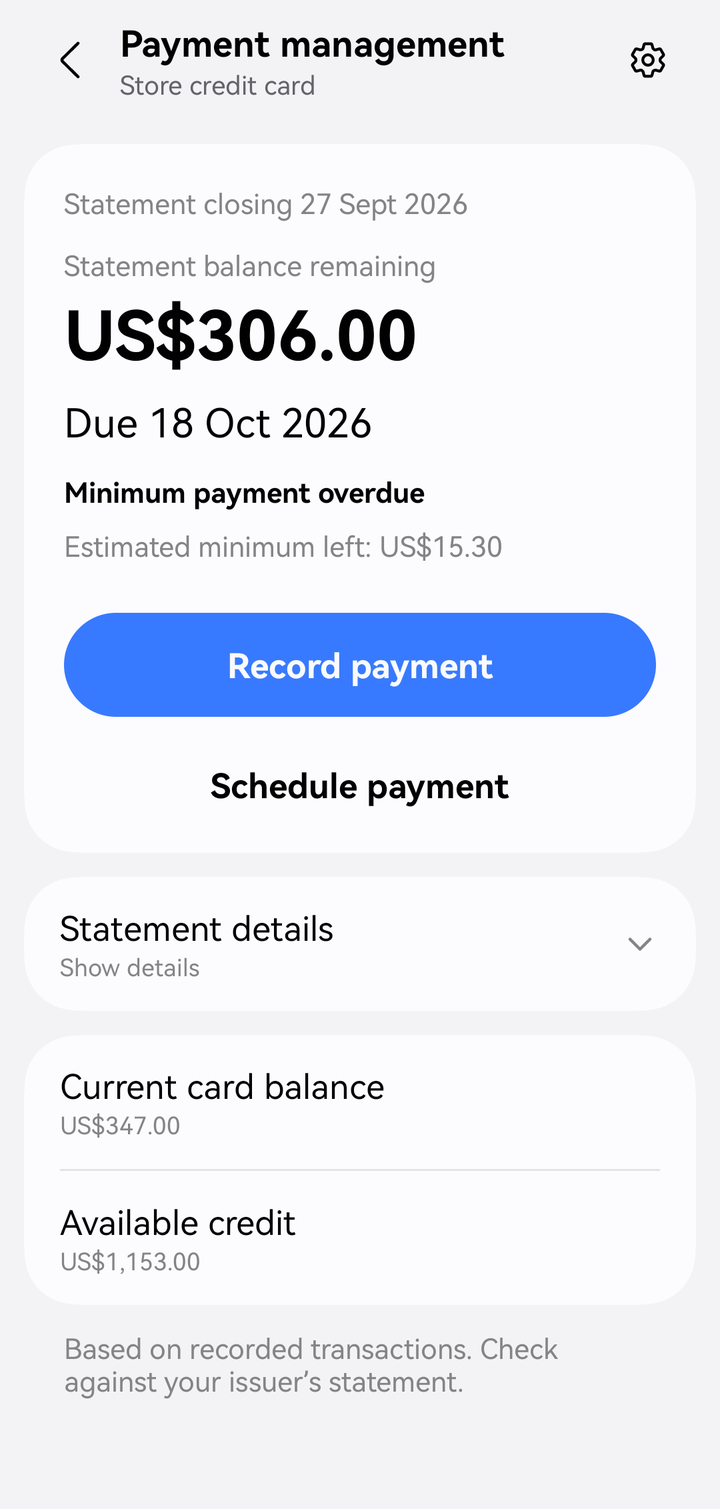
Payment management for a card
The Credit cards widget on Home shows all tracked cards, the next payment due, and a Pay button. See Home dashboard.
Pay the card
- In Payment management, tap Record payment (to pay now) or Schedule payment (for a later date).
- Choose Full remaining balance, Remaining minimum, or Custom amount.
- Continue to the transaction editor. Check the paying account and date, then save.
The payment reduces the card balance. It isn't an expense, because the purchases were already recorded as expenses when you made them.
A scheduled payment records a ledger entry; it doesn't transfer money at your bank. Pay your issuer as usual.
Installment purchases
Bought something on a 0% or low-interest installment plan? Record it once, and the app bills a share on each statement.
- Record the purchase with Buy on credit, using the card as the account, and enter the full price.
- Tap Pay in installments.
- Enter the number of Months. The Monthly amount fills in; change it if your issuer's figure is higher because of interest.
- "No interest. Each statement bills ₱2,500.00."
- With interest, the extra is posted each month to an Interest account, such as Installment interest in Finance charges.
- Tap Apply, then Save.
The whole price is recorded on the purchase date, because that's when you owe it. Only each month's share counts toward the statement and its minimum payment.
Payment management lists your Installments, such as "3 of 12 billed · ₱22,500.00 unbilled". Tap one to open the purchase, or tap Pay off early to bill the rest on the next statement.
When the numbers don't match your statement
Statements are calculated from your recorded transactions: "Based on recorded transactions. Check against your issuer's statement."
- If a purchase or refund is missing, record it, and the statement updates.
- If your issuer's minimum or due date differs, use Correct minimum or due date for that statement.
Turn tracking off
In Payment settings, turn off Manage card payments. Your statement and payment history is kept.