 Accountant
User manual
Accountant
User manual
Home dashboard
Arrange the widgets on your Home screen.
What you'll learn: what each Home widget shows, and how to add, remove and reorder them.
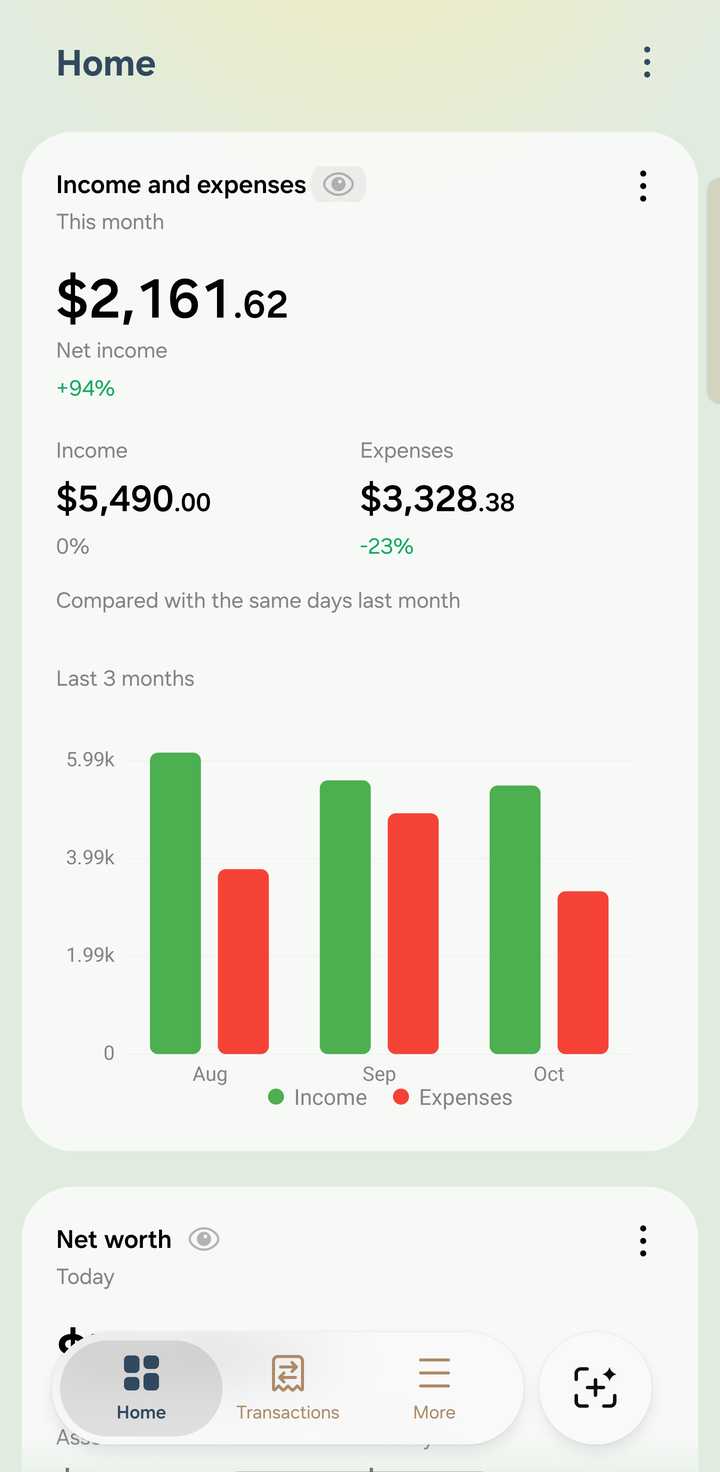
Home
The widgets
| Widget | Shows |
|---|---|
| AI insights | Short summaries and tips about your finances, if AI is set up |
| Income and expenses | This month's income, spending and net income, with a 3- or 6-month chart |
| Net worth | Your assets minus liabilities, and how it changes over time |
| Budget overview | Spending against your budgets |
| Expenses by category | Where your money goes each month |
| Cash flow | Money in vs money out, month by month |
| Cash balance | Your total cash, and an Estimated cash runway: how many months it would last |
| Upcoming transactions | Your next scheduled transactions, marked Due today or Overdue |
| Favorite accounts | Balances and shortcuts for the accounts you choose |
| Recent transactions / Recent expenses | Your latest entries. Tap one to open it |
| Savings goals | Up to 3 active goals |
| Credit cards | Card balances, available credit and payment due dates, with a Pay button |
Tap a widget to open the related screen.
Widget options
Many widgets have their own ⋮ menu, for example:
- Hide amounts / Show amounts (also the 👁 button next to the title), handy in public
- Income and expenses: Compare with the same days last month or Compare with all of last month, and Last 3 months or Last 6 months
- Expenses by category: Show top 3, 5, 7 or 10, or Show all
- Net worth, Income and expenses and Cash flow: a graph toggle in the card's footer
- Upcoming transactions, Recent transactions, Recent expenses and Budget overview: how many rows to show, with Show more and Show less
- Favorite accounts: choose the accounts and how many to show
- Cash balance: choose the runway method. Spending coverage divides cash by average cash paid out; Net-burn runway divides it by average net cash outflow.
- AI insights: Auto-scroll insights on or off
Add, remove and reorder
- Add: tap ⋮ › Add widgets on Home and pick from the list.
- Edit home: touch and hold any widget, or tap Edit home at the bottom of Home. Each widget shows a remove button, and you can drag widgets to move them. Tap the back arrow when you're done.
- Reorder from a list: tap ⋮ › Reorder home widgets, then touch and hold a row and drag it.
Home screen and lock screen widgets
Accountant also has widgets for your phone's home screen. On Samsung phones, some also work on the lock screen and Always On Display:
| Widget | Shows |
|---|---|
| Quick add | Add an expense in one tap |
| Spending & budget | Today's spending, this month's totals and budget used |
| Next card due | Days until your next credit card payment |
| Account balance | The balance of an account you choose |
Touch and hold your home screen, tap Widgets, and find Accountant. Turn off Settings › Show amounts on widgets to show •••• instead of amounts. Widgets other than Quick add may need Premium.
AI insights
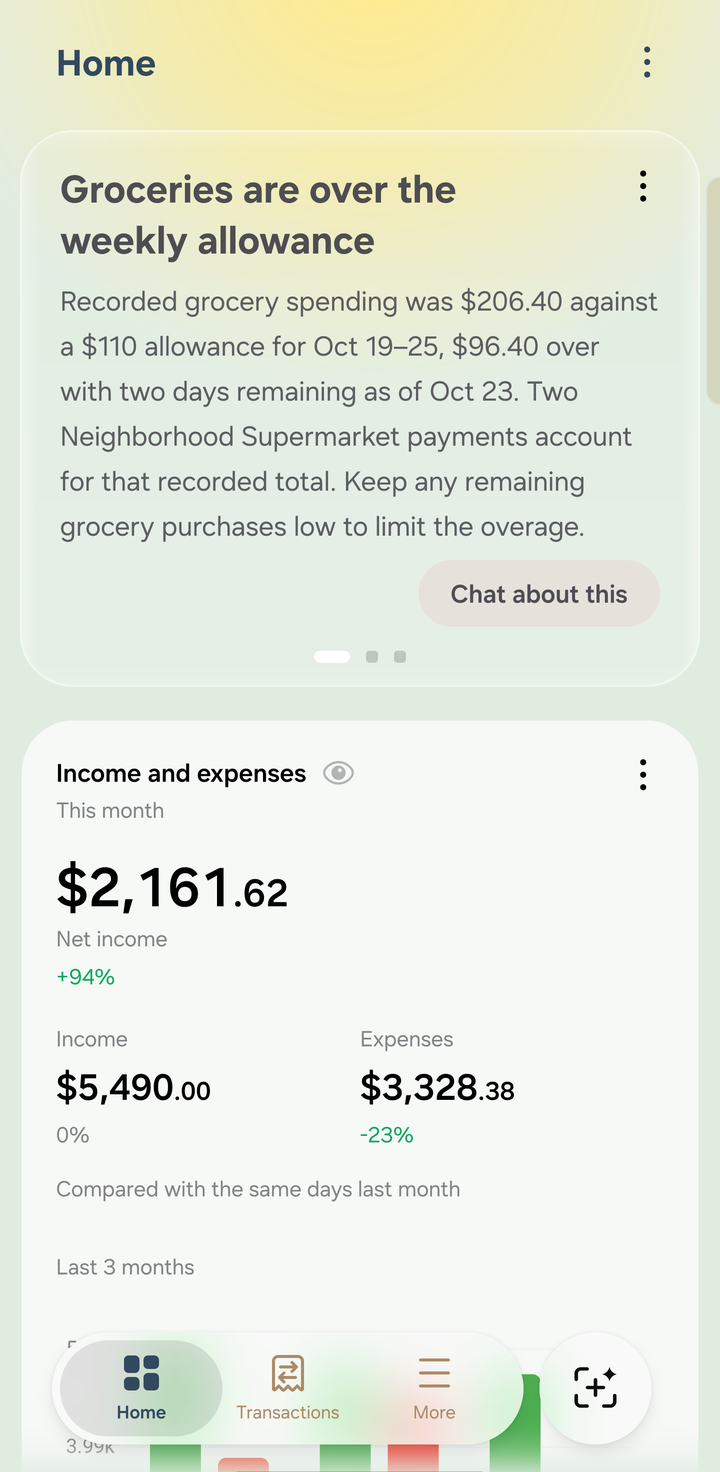
An AI insight about the grocery budget
With an AI provider set up, Home shows a few short insights, such as a budget running over, rising expenses, a cash shortfall before a scheduled payment, or an overdue payment. The figures come from your ledger; the AI only words them. With a cloud provider, Chat about this opens AI Accountant to discuss the insight. See AI Accountant.