 Accountant
User manual
Accountant
User manual
Scheduled and recurring
Bills, salaries and other transactions that happen later or repeat.
What you'll do: schedule a monthly bill so Accountant reminds you, or posts it for you, when it's due.
Schedule a transaction
- Fill in the transaction as usual. See Recording a transaction.
- Tap the alarm-clock button next to the date.
- On Schedule, tap Select date and Select time. Scheduled dates start from tomorrow.
- Under Repeat, choose Don't repeat, Every day, Every week, Every month or Every year. After you pick one, you can change its interval, for example Every 2 weeks, and for monthly and yearly repeats, which day it falls on.
- If it repeats, set when it Ends: No end date, Number of occurrences, or an End date.
- Under When the transaction is due, choose what happens:
- Notify me when due: you get a notification.
- Post when due: the transaction is added to your accounts on the scheduled date.
- Go back and tap Save.
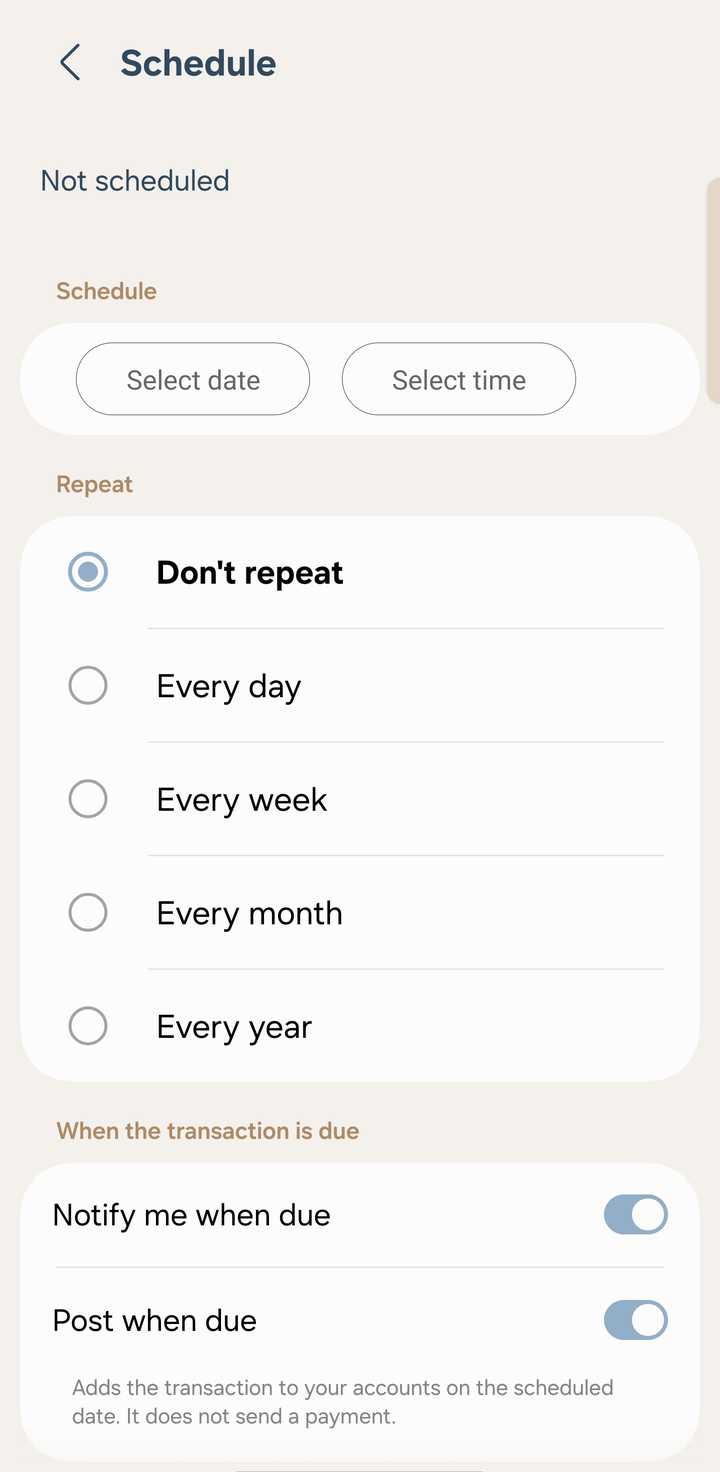
The Schedule screen
Post when due only records the transaction in Accountant. It doesn't send a payment from your bank.
Find your scheduled transactions
- Transactions › Scheduled lists everything coming up.
- The Upcoming transactions widget on Home shows the next few, and marks those Due today or Overdue. See Home dashboard.
In the Scheduled list, touch and hold to select. You can then Delete, Copy or Share them.
Timing
Reminders and automatic posting arrive within about 10 minutes of the scheduled time while your phone is awake. If the phone is idle, Android may hold the alert until the screen turns on. The transaction still keeps its scheduled date, so your books aren't affected.
After a restart, an app update or a time-zone change, Accountant sets its alarms again by itself. Anything that was due in the meantime is posted.
Notifications
Allow notifications so you don't miss reminders. If you skipped this during setup, turn on notifications for Accountant in Android settings. The app also tells you if the Scheduled transaction reminders channel is off.