 Accountant
User manual
Accountant
User manual
The six transaction types
Which shortcut to use for what happened, and what Accountant records.
What you'll learn: which of the six shortcuts fits each situation, and what to fill in for each.
Tap the + button to see the Transaction shortcuts. Each shortcut opens the editor with a transaction type already chosen. You can switch types later from the drop-down at the top of the editor.
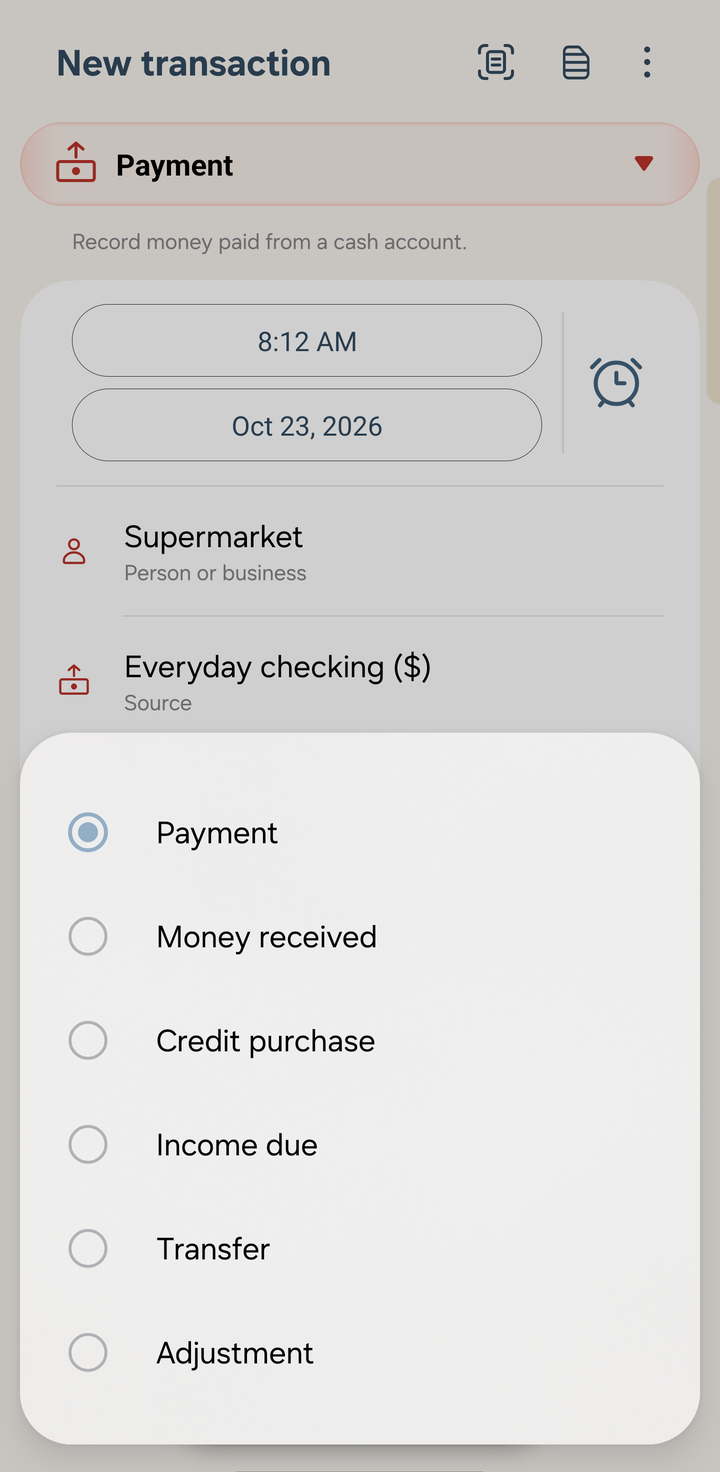
The transaction type drop-down in the editor
At a glance
| Shortcut | Type in the editor | Use it when… |
|---|---|---|
| Pay money | Payment | money leaves a cash, bank or e-wallet account |
| Receive money | Money received | money arrives in a cash, bank or e-wallet account |
| Buy on credit | Credit purchase | you buy something and will pay later, for example by credit card |
| Record income due | Income due | you've earned income but haven't been paid yet |
| Transfer money | Transfer | you move money between two of your own cash accounts |
| Add adjustment | Adjustment | nothing moved in cash, but something needs correcting or reclassifying |
Pay money
Use it for everyday spending from cash, a bank account or an e-wallet, and for paying off a credit card or a loan.
- Person or business: who you paid (optional).
- Pay from: the cash account the money left.
- Add item: what the payment is for. Pick from the Expense tab for spending, or Other accounts to pay off a card, lend money or buy an asset. Add several items to split one payment, for example groceries and household supplies on one receipt.
Paying your credit card bill? Add the card as the item, not an expense. The purchases were already counted when you charged them. Or use Record payment in the card's payment management.
Receive money
Use it for salary, money paid back to you, collections from clients, and loan proceeds.
- Deposit into: the cash account the money went into.
- Add item: what the money is for. Choose from:
- Income: salary, interest or business income that you haven't recorded yet.
- Other accounts: collecting a receivable, receiving a loan or selling an asset.
- Finance charges: bank or transfer charges deducted from the amount you received.
Buy on credit
Use it for credit card purchases and bills you'll pay later.
- Payable account: the credit card or payable you owe.
- Add item: what the purchase is for.
The expense is recorded today and your card balance goes up. When you pay the card, use Pay money (or the card's Record payment). That reduces the debt and is not a second expense.
Record income due
Use it when you've done the work or earned the income but haven't been paid yet, for example an invoice you've sent.
- Receivable account: who owes you, such as a client receivable.
- Add item: the income account.
When the money arrives, use Receive money with the receivable as the source.
Transfer money
Use it for moving money between your own accounts: an ATM withdrawal, a savings deposit, an e-wallet top-up or a currency exchange.
- Source: the account the money left.
- To account: the account it went to.
- Amount, and the received amount if the two accounts use different currencies. See Multi-currency.
- Finance charges: any fee charged for the transfer. Tap Add item to add one.
A transfer never changes your net worth, apart from any fee.
Add adjustment
Use it for non-cash corrections and reclassifications, such as writing off a debt someone will never pay, moving an amount to the right account, or recording a change in an investment's value.
- Tap Add item and pick an account from Accounts to adjust. The tabs are Non-cash assets, Liability, Income and Expense. Cash accounts aren't listed, because moving cash is a payment, receipt or transfer.
- Enter the amount. Tap the + sign to switch it to − if the account's balance should go down.
- Add the other side the same way.
The Entry balance line shows Balanced when the increases and decreases offset each other in the books. Until then it shows Out of balance, or Add entries if nothing has been added yet.
Adjustments are the most flexible type, so they're also the easiest to get wrong. If one of the other five types fits, use it.
Next
- Recording a transaction: the editor step by step
- Money spent isn't always an expense