 Accountant
User manual
Accountant
User manual
Recording a transaction
Record a payment step by step, then learn the editor's other options.
What you'll do: record a grocery purchase paid from your bank account. The same steps work for every transaction type.
Record a payment
- Tap the + button, then Pay money.
- Check the time and date at the top. Tap either one to change it.
- Tap Person or business and type who you paid, for example Supermarket. Names you've used before are suggested as you type. This is optional, but it makes searching and reports more useful.
- Tap Pay from and choose the account the money came from, for example Everyday checking.
- Tap Add item and choose what the payment was for, such as Groceries on the Expense tab. The Non-cash assets tab is for things you bought to keep, and Liability for paying off a debt.
- Enter the amount and tap Done. The calculator button next to the amount lets you add up a receipt.
- Optional: tap Transaction memo to add a note, and Add label to tag it, for example Vacation or Business.
- Tap Save.
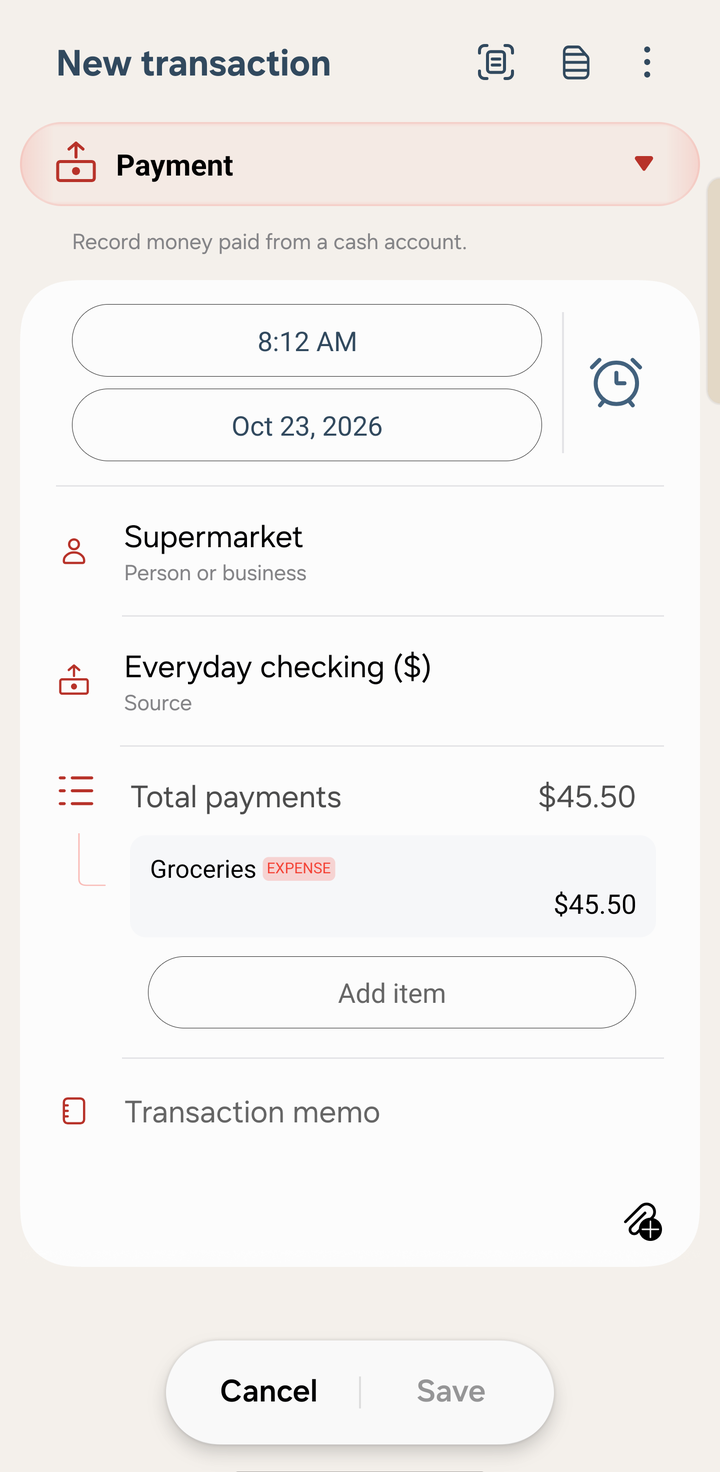
A payment ready to save
The transaction appears in Transactions › Posted, with its debit (DR) and credit (CR) accounts underneath.
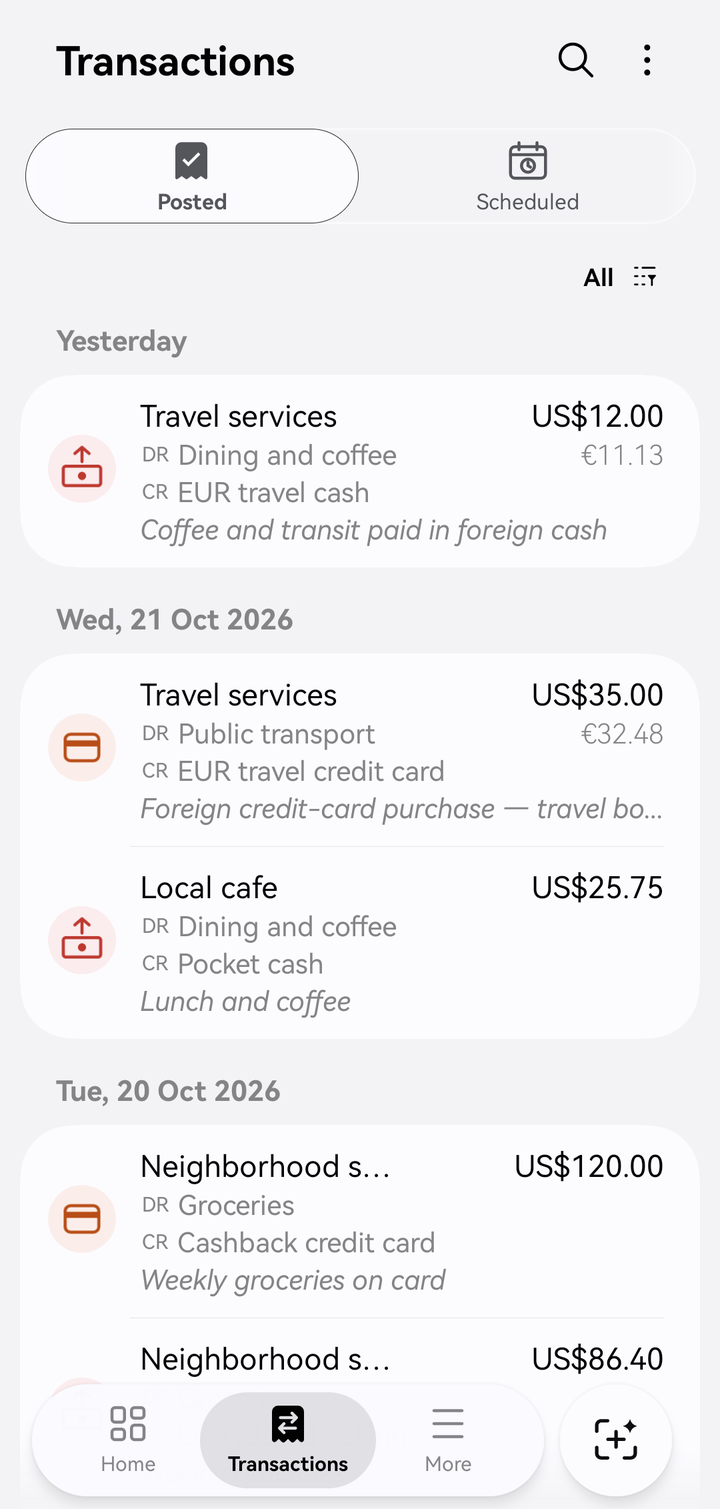
Posted transactions, with the debit and credit accounts of each
Template suggestions. If you saved a template for the person or business you entered, a bubble appears on that row. Tap Use to fill in the form from it, or, when there are several, Choose to pick one.
Labels
Labels tag transactions across accounts, such as every cost of one trip. Add as many as you like with Add label; tap a label pill to remove it. Later you can:
- filter Transactions by label, or find them with 🔍 search
- see Profit & loss › ⋮ › By label for income and expenses per label. See Reports.
Splitting one payment
Tap Add item again to split the payment across several accounts, for example groceries and household supplies on one receipt. The total at the top (Total payments, Total money received or Total purchases) is the sum of the items.
Attachments
Tap the paper-clip button at the bottom of the form to attach a receipt or document:
- Take photo
- Choose from gallery
- Choose file
- Use existing attachment: reuse a file already attached to another transaction
Attachments stay on your phone. If sync is on, they're also copied to your own Google Drive. They're not shared with other people in a shared ledger.
Toolbar buttons
- Scan (receipt icon): read a receipt and fill in the form. See Scanning receipts.
- Transaction templates (stack icon): start from a saved template. See Templates, drafts and Trash.
- ⋮: Save as draft. When you edit a saved transaction, it also has Copy, Save as template, Print or export and Delete.
Scheduling instead of posting
Tap the alarm-clock button next to the date to make this a scheduled or recurring transaction. See Scheduled and recurring transactions.
Foreign currencies
If the accounts use different currencies, an Exchange rate card appears. See Multi-currency.
Editing or deleting
Open Transactions, tap the transaction, change what you need and tap Save. To delete, use ⋮ › Delete. If Trash is on, deleted transactions are kept for 30 days.
To change many at once, touch and hold one in the list to start selecting, then use Change date, Change person or business, Change amount, Copy or Delete.
Copied transactions use today's date. Copies of scheduled transactions keep their scheduled date, or use tomorrow's date if that's later.